---
title: "Custom field mapping"
slug: "custom-field-mapping"
description: "Configure custom field mapping between CPQ and C4C."
updated: 2024-10-22T22:36:22Z
published: 2024-10-22T22:36:22Z
canonical: "docs.zilliant.com/custom-field-mapping"
---
> ## Documentation Index
> Fetch the complete documentation index at: https://docs.zilliant.com/llms.txt
> Use this file to discover all available pages before exploring further.
# Custom field mapping
Zilliant CPQ supports mapping between C4C and the CPQ custom Business Data Attribute (BDA) field with a range of string, Boolean, and decimal data types. CPQ uses a lookup table to maintain this mapping.
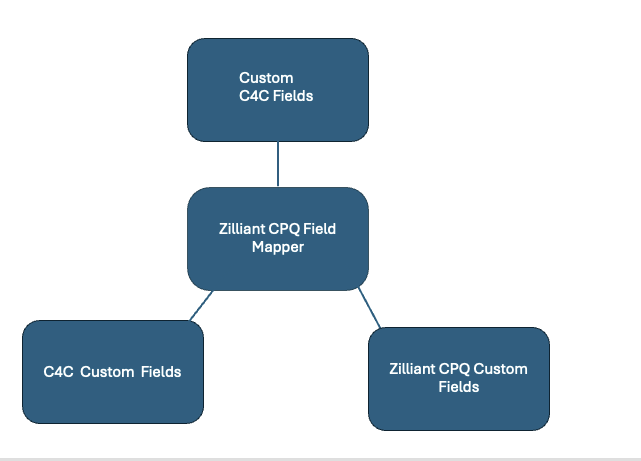
### Supported graph and subject types
| | | |
| --- | --- | --- |
| Account | | Graph Type |
| | Account | Subject Type |
| | Address | Subject Type |
| | PartnerRoleRecord | Subject Type |
| Contact | | Graph Type |
| | Contact | Subject Type |
| Opportunity | | Graph Type |
| | Opportunity | Subject Type |
| Quote | | Graph Type |
| | SalesItem | Subject Type |
| | PartnerFunctionRecord | Subject Type |
### Supported data types
Use the following supported data types to define the range property of a custom BDA:
- **String**—Syntax for defining range: `<rdfs:range rdf:resource="&xsd;string"/>`
- **Boolean**—Syntax for defining range: `<rdfs:range rdf:resource="&xsd;boolean"/>`
- **Decimal**— Syntax for defining range: `<rdfs:range rdf:resource="&xsd;decimal"/>v`
The following table lists supported data type mappings between CPQ and C4C.
| C4C data type | C4C data type property | CPQ data type | Notes |
| --- | --- | --- | --- |
| Text | Short text (40) | String | |
| List (single) | List | String | Maintains only the code value in the BDA. Localization of the assigned code value in C4C is not supported. |
| Indicator | | Boolean | |
| Decimal Number | | Decimal | |
Use the following procedures to configure custom field mapping:
1. [Define custom fields in CPQ](/v1/docs/custom-field-mapping#define-custom-fields-in-cpq) and add a custom BDA
2. [Map the fields](/v1/docs/custom-field-mapping#map-the-cpq-custom-bda-to-c4c-custom-fields)
## Define custom fields in CPQ
Define custom fields in CPQ in the **application-schema-ext.owl** file:
1. Download the **application-schema-ext.owl** file. See [General property and ontology files](/v1/docs/general-property-and-ontology-files) to learn how to access this file.
2. Add the new custom BDA for the supported domain with the following properties:
- **Type**—Specify a functional property.
- **Domain**—Define within the supported domain/subject types URI.
- **subProperty**—Specify an assertion.
- **Range**—Specify a string, decimal or Boolean value.
3. Upload the **application-schema-ext.owl** file to the system.
4. Restart to refresh the newly added custom fields to the system.
The following samples show a supported custom BDA definition for the account business type:
```
```
```
```
```
```
## Map the CPQ custom BDA to C4C custom fields
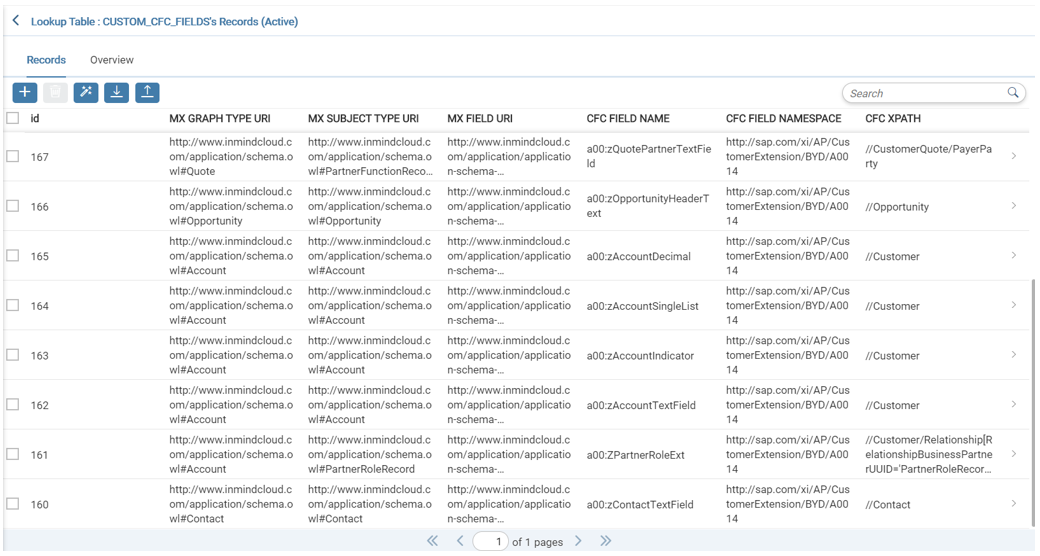
After you define the supported custom BDA, map the BDA to the custom field created in C4C. Use the **CUSTOM_CFC_FIELDS** pre-delivered lookup table.
The lookup table includes the following fields:
- **MX GRAPH TYPE URI**—Supported PRIMRY Business Type URI. It must be the full URI of [supported Graph Types](/v1/docs/custom-field-mapping#supported-graph-and-subject-types) available in CPQ.
- **MX SUBJECT TYPE URI**—Supported Subject Type URI. It must be the full URI of [supported Subject Types](/v1/docs/custom-field-mapping#supported-graph-and-subject-types) available in CPQ.
- **MX FIELD URI***—The custom BDA URI with the domain of the supported SUBJECT TYPE URI and supported data type (such as String, Boolean, Decimal).
- **CFC FIELD NAME**—Custom field name defined in C4C.
- **CFC FIELD NAMESPAC**—Name space of the field name generated by C4C when creating the custom field. Example: **a00:zAccountHeaderText1**.
- **CFC XPATH**—XPath expression at the root level for the **SUBJECT_TYPE**.
Note
The XPath definition for each supported **SUBJECT TYPE** is fixed and must exactly match the syntax.
To access the **CUSTOM_CFC_FIELDS** lookup table in CPQ:
1. Sign in to CPQ with administrator credentials.
2. In the left navigation area, select **Lookup**.
3. Use the search bar at the top to find **CUSTOM_CFC_FIELDS**.
Define the custom fields mapping in Excel:
1. Download the **CUSTOM_CFC_FIELDS** table to define the custom field mapping.
2. Define the mapping record.
3. Upload the Excel file to the application.
Important
When you upload the Excel file, the application notifies you if detects an error. If CPQ generates the **MX Field URI Not Found** error, investigate the following possible reasons:
- The system does not recognize the **MX Field URI** value defined in the Excel file because the custom field has not been defined. You must define the custom field in the **application-ext.owl** file before defining the custom field mapping in the table. The custom BDA should be defined and available in the system before uploading the **CUSTOM_CFC_FIELDS** table.
- The server needs to be restarted.